Style from Image
Take the look of a picture you like (its camera angle, lighting, color and mood) and put your own product in it.
The Style from image node reads one picture and breaks its look into 11 ingredients. You switch each ingredient on or off and edit its words, and the node compiles them into a prompt. Wire that prompt into an Image Generation card next to your own product picture.
Before you start
- Open a canvas you can edit, with a picture on it.
- Extract style is one request to an AI model that reads the picture, and it is paid like an image. It uses your own OpenAI key first, then a key your workspace shares, then Gavana credit on the Experimental plan. If none of those applies, the request is refused. Or read the picture on your own computer with your ChatGPT plan, which uses no Gavana credit: see Read the picture on your own computer.
- Adding the node, wiring it and editing its ingredients are free. Generating the new image with the style still counts toward your usage like any generation.
The whole flow
Watch it once from a picture to a new image, or click a step under the replay to jump to it.

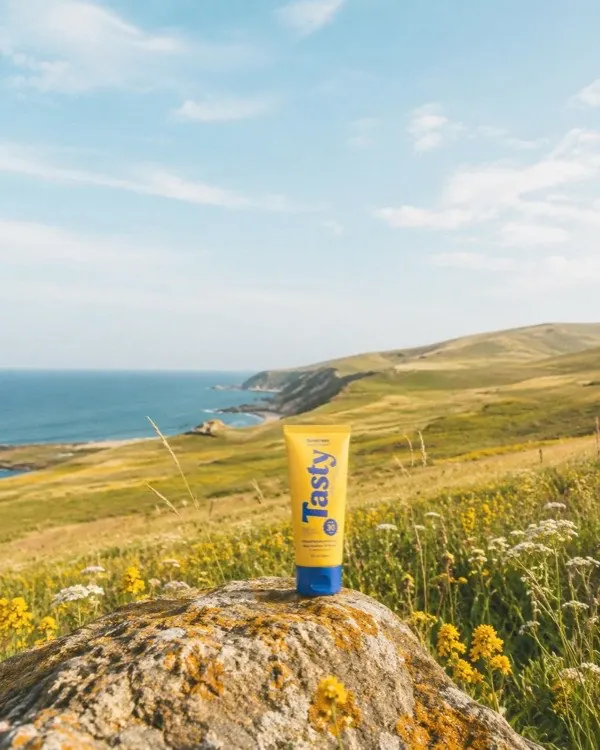
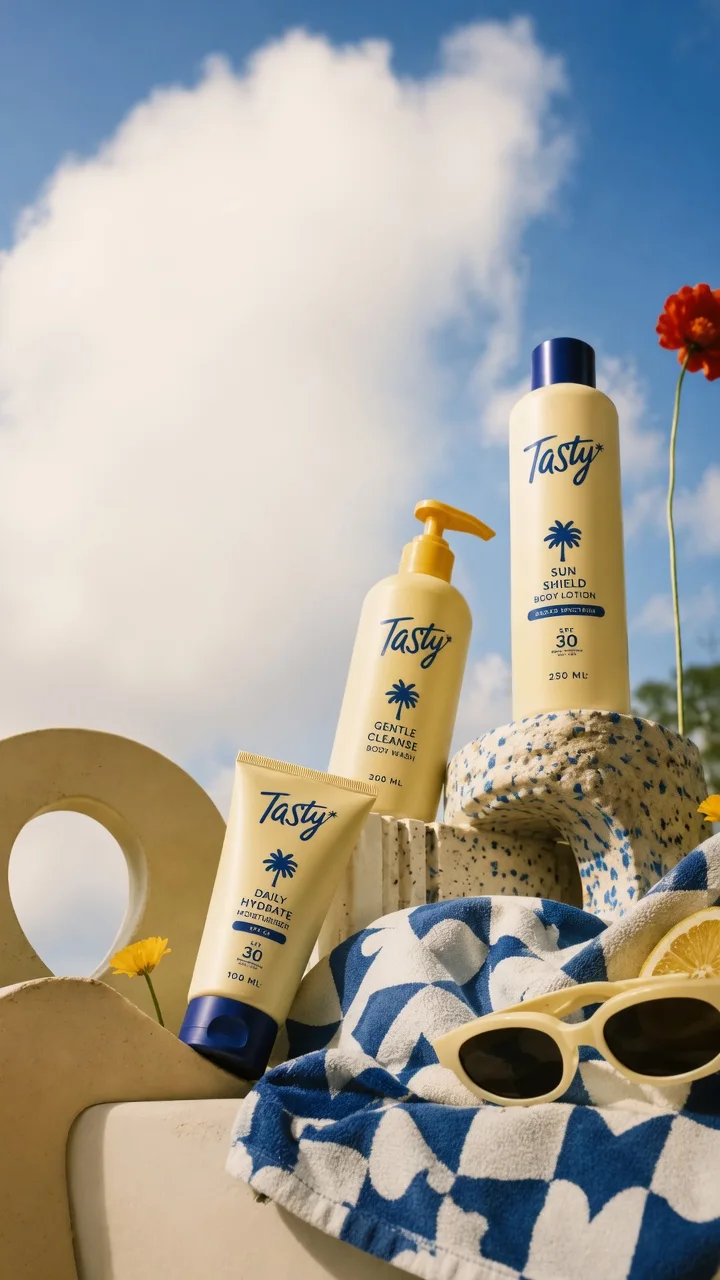

4 stepsFrom a picture to a new image in its style
Add the node from a picture
There are two ways to add the node.
- From a picture: hover the picture, then drag from its output handle (the small circle on its right edge) onto empty canvas and let go. In the menu that opens, choose Style from image. The new card is already wired to that picture.
- From the toolbar: click Add (the white + button). Under Add to canvas, choose Style from image. The new card is empty and says Connect an image to read its style, so drag from a picture’s output handle to the card to wire the picture in.
The drag menu offers Style from image for a picture that is not a list. It does not offer it for an empty generator that has no picture yet, or for the output of another Style from image node.
Extract style
Once a picture is wired in, the card shows the picture’s name (for example Image 1), a short guide, the model picker (GPT-5.5) and a round button. Hover the round button to read its name, Extract style, and click it.
While it works, the title Style from image gets a spinner in front and Reading image… after it, and the same round button becomes a stop button (Stop reading). When it finishes, the card shows the compiled prompt and a button that reads Ingredients 8/11.
Pick ingredients
Click Ingredients 8/11 to see the list. Each ingredient has a switch and a text box. Turn a switch off to leave that ingredient out of the prompt, or edit its words. A small word beside each one (high, medium or low) shows how sure the reader was. An ingredient with nothing to see shows Nothing observed.
The count in the button follows your switches, for example Ingredients 9/11 after you turn one more on. Click Prompt to go back to the compiled prompt, which contains only the ingredients that are on and have text.
If none of the turned-on ingredients has text, the prompt area asks you to Turn on an ingredient.
Connect it to an image card
Drag from the Style from image card’s output handle to an Image Generation card. Then wire your own product picture to the same card, the same way. The style supplies the look, and your product picture supplies what to show.
A card takes its prompt from one source at a time. Click the card’s Generate button when you are ready, as in Generate an image from a prompt.
The 11 ingredients
The ingredients come in two groups, Style and Content. The first eight are on after a reading, so a new reading carries the look but not the original scene or person.
| Ingredient | Group | On by default |
|---|---|---|
| Camera & perspective | Style | Yes |
| Composition & depth | Style | Yes |
| Lighting | Style | Yes |
| Color treatment | Style | Yes |
| Texture & finish | Style | Yes |
| Focus & blur | Style | Yes |
| Mood | Style | Yes |
| Pose & movement | Content | Yes |
| Environment | Content | No |
| Subject & outfit | Content | No |
| Text & graphics | Content | No |
Environment, Subject & outfit and Text & graphics start off so the original scene, character and lettering do not carry over into your new picture. Turn one on when you want it.
More you can do
Read the picture on your own computer
Instead of using a key or Gavana credit, you can read the picture on a computer of yours that runs Codex, with your own ChatGPT plan. This uses no Gavana credit.
- Click the model picker on the card.
- Switch from Gavana credit to ChatGPT plan.
- Pick a computer. Each one is listed as Codex (ChatGPT plan) with the computer’s name and reads with Codex. The list notes that this “reads the image through Codex on your computer and uses your ChatGPT plan. No Gavana credit.”
- Click Extract style as usual.
3 stepsRead the picture on your own computer
If the ChatGPT plan tab says No computer is ready to read images on your ChatGPT plan., click Connect your computer at the bottom of the tab to connect one first.
The picture has to be stored in Gavana for your computer to read it. If you see Upload this image to Gavana before reading it on your computer., upload the picture first.
Update companion
A computer whose companion app is too old to read pictures is still listed, but it is greyed out and marked Update companion. Update the Gavana companion on that computer, then open the picker again.
A computer that you do not own shows Unavailable. This happens when a teammate picked their own computer on a shared board. Extract style stays off until you pick a model or a computer of yours.
Extract again
Click Extract again (the circular arrows) to read the picture again. If you edited any ingredient words, Gavana first asks: You edited ingredients. Extracting again replaces their words; on/off stays. Click Replace to go on. Your switches stay as you set them.
One picture per node
A Style from image node reads exactly one picture.
- Wiring a second picture shows Style from image reads one image, and no connection is made.
- Wiring something that is not a picture shows Style from image reads an image, not this node.
Swap a prompt source
An image card takes its prompt from one place. If the card already has a Text note, a Prompt List or another Style from image node, connecting a Style from image node asks Use this Style from image instead? and explains that “connecting it will disconnect the prompt source already feeding this node.” Click Use Style from image to switch. The other way round, connecting a prompt to a card that has a style asks Replace the Style from image?. Click Replace style to switch.
If a reading fails
The card shows the reason in red with a Retry button. The messages you may see:
| Message | What to do |
|---|---|
| This image is too large to read. | Use a picture under 50 MB. |
| The AI provider is busy reading images. Try again in a moment. | Wait, then click Retry. |
| Reading the image took too long. Try again. | Click Retry. |
| Gavana couldn’t reach the AI provider. Try again in a moment. | Click Retry. |
| The AI provider could not read this image. Try again in a moment. | Click Retry, or try another picture. |
| The image could not be read into a style. Try again. | Click Retry. |
| This account’s plan does not include image generation on Gavana’s account. Ask a Gavana administrator to change the plan. | Save an OpenAI key in Settings → AI connections, ask an administrator to change your plan, or read the picture on your own computer. |
| This account does not have access to Gavana image generation yet. Ask a Gavana administrator for access. | Ask an administrator for access. |
When your own or a shared OpenAI key is saved but cannot be used (no credit left, rate limited or rejected), the message names the key and says that Gavana credit is not used while a key is saved. Top up, re-test or replace the key in Settings → AI connections.
On your own computer, a reading can also fail for reasons on that machine:
| Message | What it means |
|---|---|
Codex on your computer is not signed in to ChatGPT. Run codex login, then try again. | Sign Codex in on that computer. |
| Your ChatGPT plan’s Codex limit is used up. Try again later or choose another model. | Wait for the limit to reset, or pick another model. |
| Your computer took longer than 5 minutes to read the image. | Click Retry. |
| Codex finished without describing the image. Try again. | Click Retry. |
| OpenAI declined to read this image. | Try another picture. |
An error that depends on who clicked, such as a missing plan, a key problem or a busy provider, shows only on your screen. Teammates on the board keep the last good reading.